
Notion Conversational Agent
The Notion Conversational Agent is an AI-powered assistant that interacts with your Notion workspace through natural language conversations. This flow performs Notion-related tasks like creating pages, searching for information, and managing content, all through a chat interface.
Prerequisites
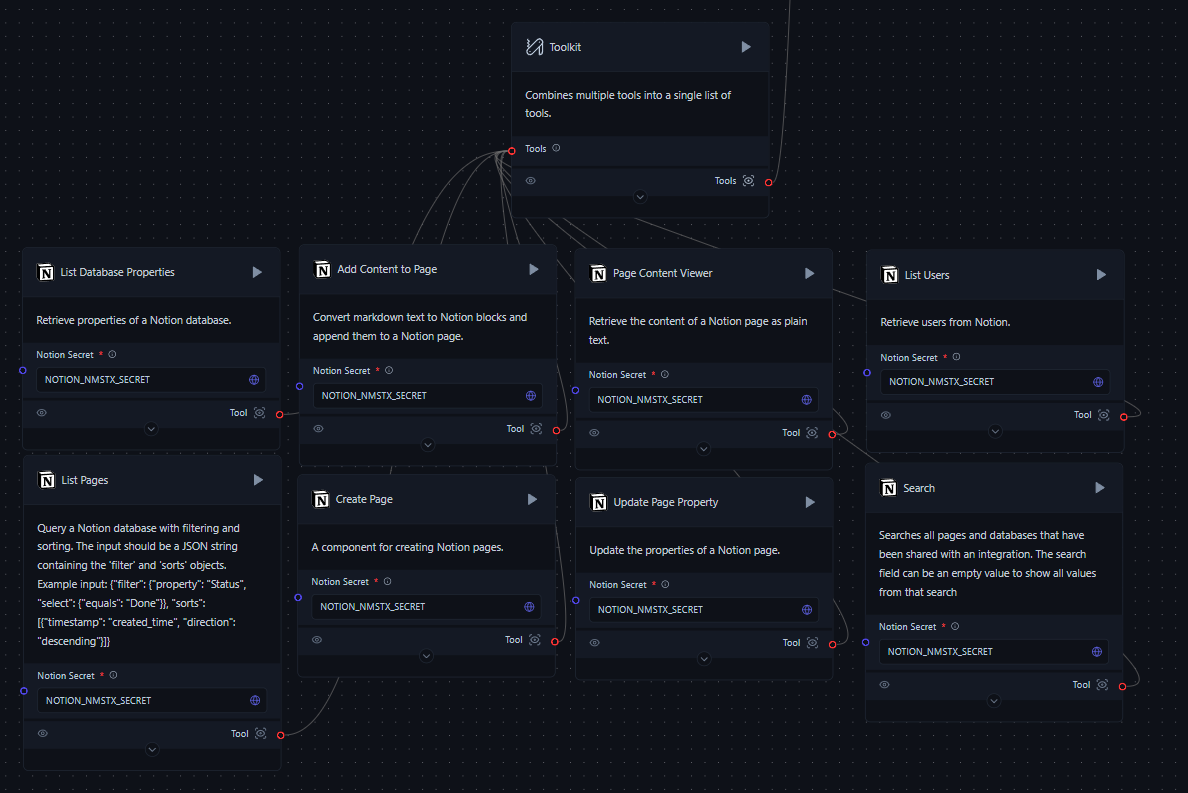
Flow Components
Input and Output
Chat Input: Accepts user queries and commands
Chat Output: Displays the agent's responses
Language Model
OpenAI Model: Processes user input and generates responses
Agent and Tools
Tool Calling Agent: Coordinates the use of various Notion tools based on user input
Toolkit: Combines multiple Notion-specific tools into a single toolkit
Notion Tools: Various components for interacting with Notion, including:
List Users
List Database Properties
List Pages
Page Content Viewer
Create Page
Update Page Property
Add Content to Page
Search
Memory and Prompt
Chat Memory: Stores conversation history
Prompt: Provides system instructions and context for the agent
Current Date: Supplies the current date and time for context
Run the Conversational Notion Agent
Open BroxiAI and create a new workflow.
Add the components listed above to your flow canvas.
Connect the components as shown in the flow diagram.
Input the Notion and OpenAI API keys in their respective components.
To start the flow, click the "Playground" button in BroxiAI Workflow.
In the chat interface, enter a Notion-related request or question. For example:
"Create a new page in my task database"
"Search for pages about project management"
"List all users in my Notion workspace"
The agent will process your request, use the appropriate Notion tools, and provide a response.
Continue the conversation, asking follow-up questions or giving new commands as needed.
Example Interactions
Customization
The flow can be customized to meet your team's specific needs.
Customize this flow by:
Adjusting the system prompt to change the agent's behavior or knowledge base.
Adding or removing Notion tools based on your specific needs.
Modifying the OpenAI model parameters (e.g., temperature) to adjust the agent's response style.
Troubleshooting
If you encounter issues:
Ensure all API keys are correctly set and have the necessary permissions.
Check that your Notion integration has access to the relevant pages and databases.
Verify that all components are properly connected in the flow.
Review the BroxiAI logs for any error messages.
For more advanced usage and integration options, refer to the Notion API documentation and BroxiAI documentation.
Last updated